
Step 1
Connect Twilio
Enter your Account SID and Auth Token. ConnectSMS checks them with Twilio before saving and never shows the token again.
Administration
ConnectSMS Setup puts the Twilio connection, business numbers, access, messaging rules and system health in one Salesforce tab. Your team gets a full texting toolkit, and you decide who uses which number, under which rules.
How do admins control SMS in Salesforce? In ConnectSMS Setup, admins connect Twilio, give people and public groups Send or View access to each business number, choose which records can be texted, and set opt-out scope, quiet hours and other policies. Sending stays off until the eight-step checklist is ready, and one switch turns it off for everyone.
ConnectSMS Setup
Scroll, drag or use the arrow keys to turn through the admin workspace. Select the card at the front to see it full size.
Recreated from the ConnectSMS interface with sample data.
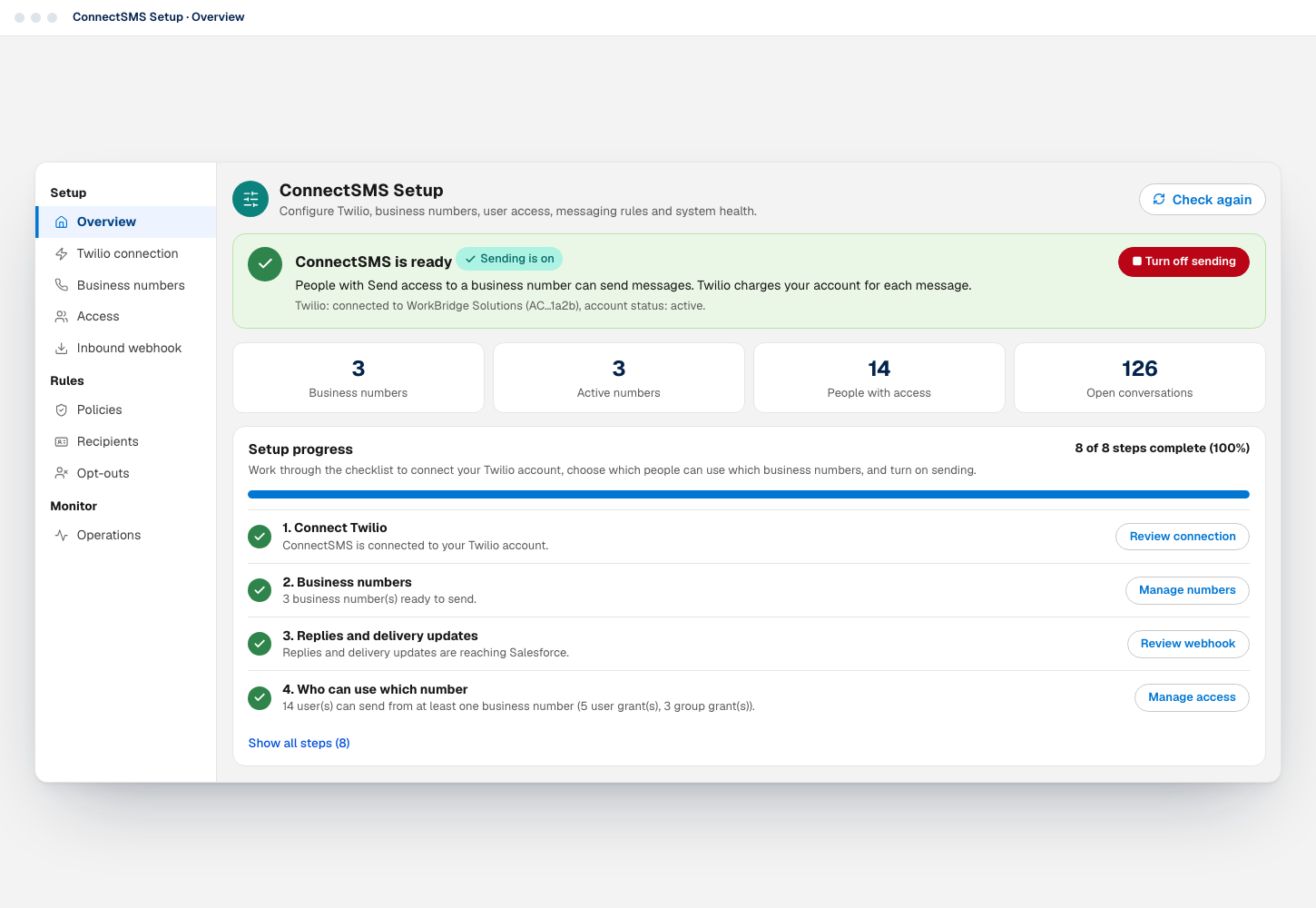
Whether sending is on, how many numbers and people are set up, and an eight-step checklist with a button to each fix.
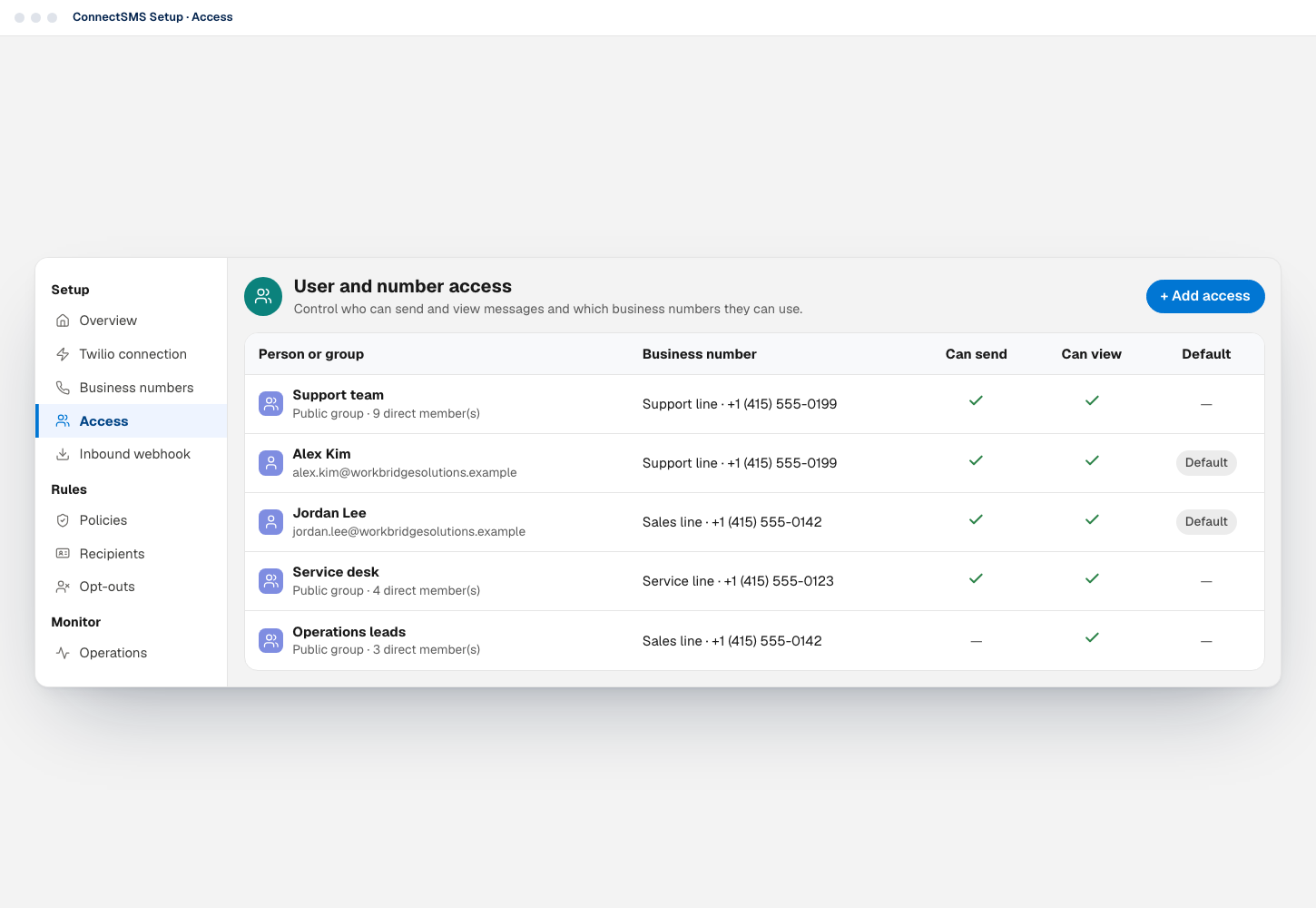
Give people and public groups Send or View access to each business number, and set each person's default.
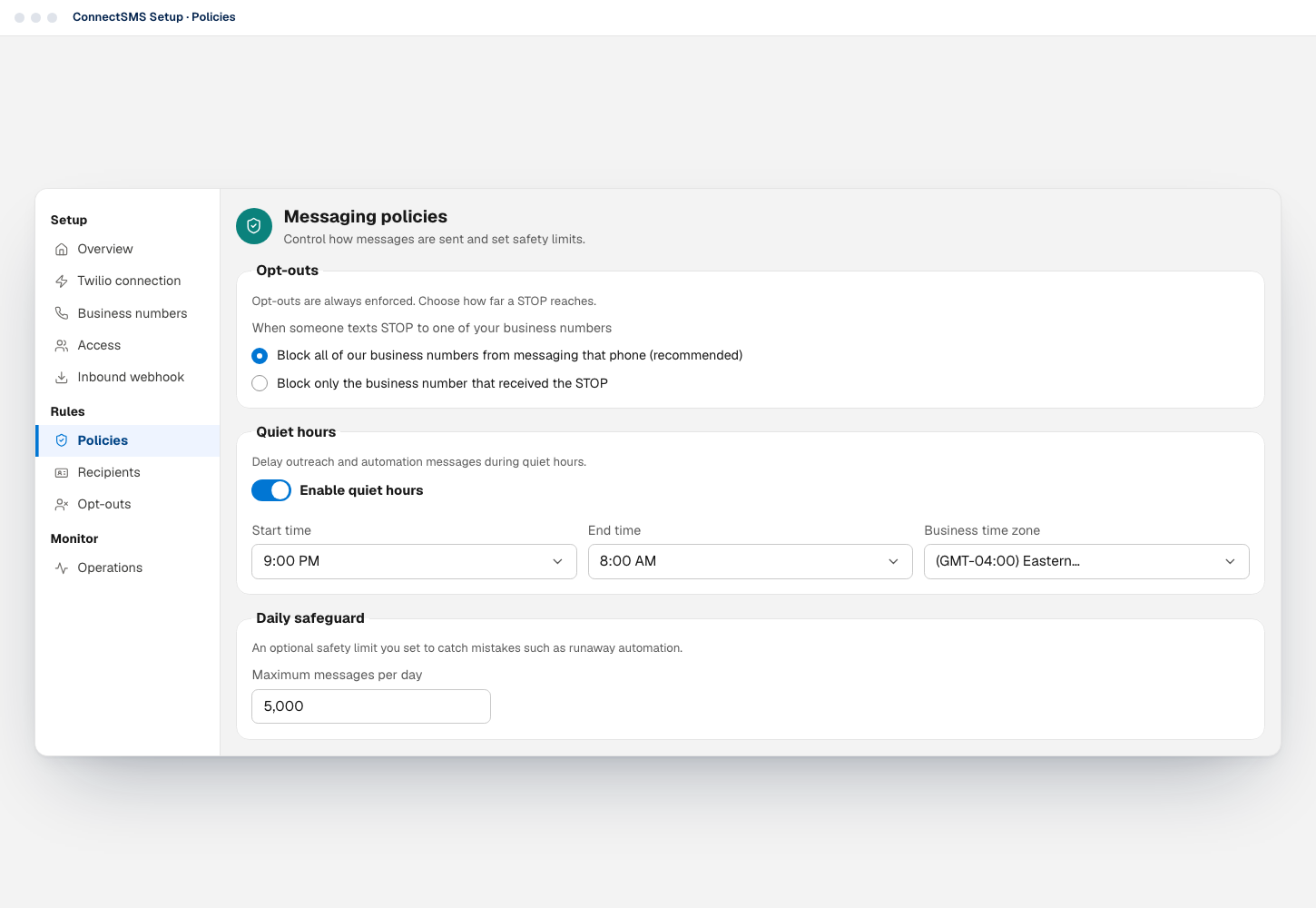
How far a STOP reaches, quiet hours for outreach and automation, and an optional daily safeguard.
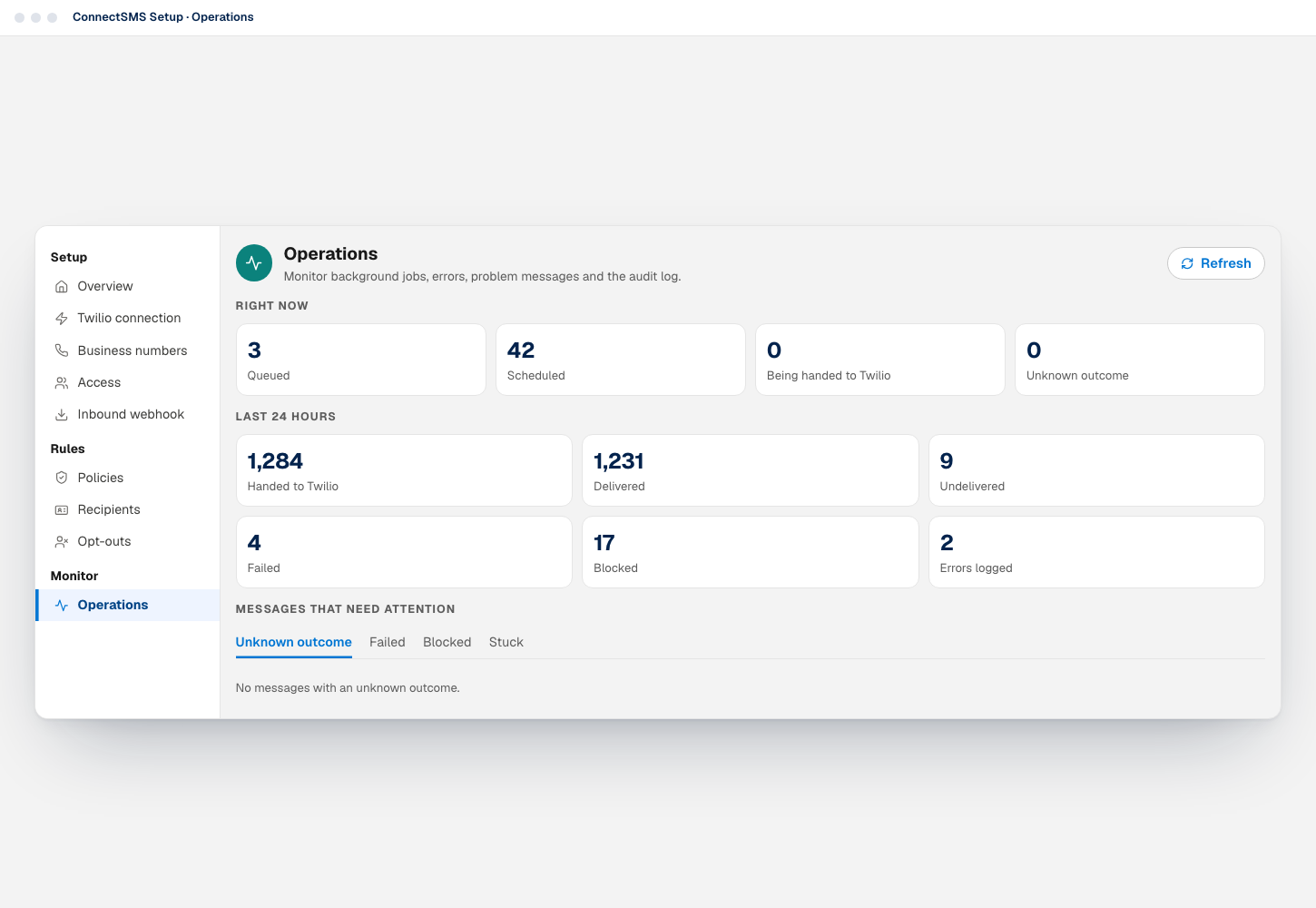
The message pipeline right now and over the last 24 hours, plus any messages that need attention.
Setup checklist
The Overview checks your org and marks each step done, to do or needing attention, with a button that takes you straight to the fix. Turn on sending stays disabled until the required steps are complete.
Step 1
Enter your Account SID and Auth Token. ConnectSMS checks them with Twilio before saving and never shows the token again.
Step 2
Sync your numbers from Twilio. Each one must be in a Twilio Messaging Service before it can send.
Step 3
Set up the webhook on a public Salesforce Site so replies, opt-outs and delivery updates reach Salesforce.
Step 4
Give users or public groups Send access to the numbers they should text from. ConnectSMS never picks a number for them.
Step 5
Assign ConnectSMS User to people who send. They need both the permission set and number access.
Step 6
Confirm the objects and phone fields people can text from. Contact, Lead, Account and Case are ready out of the box.
Step 7
Turn on the jobs that send scheduled messages and outreach and check on messages, every 15 minutes.
Step 8
When the required steps are done, turn on sending. Your name, the time and any reason go in the audit log.
The checklist always has these eight steps, in this order. Steps 5 and 6 guide you but don't block sending. Before sending can be turned on, ConnectSMS also requires webhook signature checking set to Enforce, so forged replies and delivery updates are rejected.
Check again re-runs every check. The same readiness check is available to automation as the Get ConnectSMS Setup Health action, for admins only.
ConnectSMS Setup
Setup is grouped the way admins work: get connected, set the rules, then watch how sending is going.
Setup
Connect Twilio, manage business numbers and Messaging Services, grant access and set up the inbound webhook.
Rules
Set messaging policies, choose the records people can text, and view or manage opt-outs.
Monitor
Background jobs, problem messages, the error log, the audit log, usage and a test message, on one page.
On a phone, admins can review settings and health. Changes are made from ConnectSMS Setup on a desktop computer.
Twilio connection and numbers
ConnectSMS verifies your Account SID and Auth Token with Twilio before saving them, then imports your business numbers from their Messaging Services.
Number access
Access is granted per business number, to a person or a Salesforce public group. People only send from the numbers an admin has given them, and ConnectSMS never picks one for them.
| Person or group | Business number | Can send | Can view | Default |
|---|---|---|---|---|
| Support teamPublic group · 9 direct member(s) | Support line · +1 (415) 555-0199 | — | ||
| Alex Kimalex.kim@workbridgesolutions.example | Support line · +1 (415) 555-0199 | Default | ||
| Jordan Leejordan.lee@workbridgesolutions.example | Sales line · +1 (415) 555-0142 | Default | ||
| Service deskPublic group · 4 direct member(s) | Service line · +1 (415) 555-0123 | — | ||
| Operations leadsPublic group · 3 direct member(s) | Sales line · +1 (415) 555-0142 | — | — |
Recreated from the ConnectSMS interface with sample data.
Text from the number and reply to its conversations. Send includes view.
Read the number's conversations without being able to send from it.
Pre-selects a person's usual number when they write a new message.
Access given to a public group applies to its direct members. Defaults are set per person.
To send, a person needs ConnectSMS User as well as Send access. Setup flags anyone missing it.
Before access is removed, ConnectSMS shows which queued messages and outreach it affects.
ConnectSMS checks the queued messages, scheduled messages and outreach that depend on the access. They're blocked when they're due, not moved to another number. Messages Twilio has already accepted aren't affected, and the number's conversations leave the person's inbox unless they can view it another way.
You can assign ConnectSMS permission sets from the same Access page. Salesforce licenses and profiles stay in Salesforce Setup.
Recipients
Contacts, Leads, Accounts and Cases work out of the box. Add the objects your business runs on, and choose which phone fields ConnectSMS tries, in order.
Add an object by its API name, such as Opportunity or Patient__c, and choose Find phone fields. Phone and text fields on the record, or on one related record through a lookup, can be used. Paths through more than one relationship are rejected.
Deactivating an object stops new messages from its records. Existing messages and conversations are kept.
| Object | Phone fields (in order) | Built-in settings | Status |
|---|---|---|---|
| Service VisitService_Visit__c | 1. Contact__r.MobilePhone2. Site_Phone__c |
Active | |
| ContactContact | 1. MobilePhone2. Phone |
Built-in | Active |
| LeadLead | 1. MobilePhone2. Phone |
Built-in | Active |
| CaseCase | 1. Contact.MobilePhone2. Contact.Phone |
Built-in | Active |
| AccountAccount | 1. Phone |
Built-in | Active |
Recreated from the ConnectSMS interface with sample data.
Policies
Messaging policies cover texts from records, the inbox, outreach and automation alike. Set them once, and they apply from the next dispatcher run.
Recreated from the ConnectSMS interface with sample data.
Opt-outs are always enforced. Choose whether a STOP blocks all of your business numbers from texting that phone (recommended) or only the number that received it.
Your compliance owner should choose this setting for your brands and message types. ConnectSMS applies it but doesn't decide it for you.
Delay outreach and automation messages overnight, in your business time zone. They're held until quiet hours end, never dropped.
Quiet hours are off until you turn them on, then default to 9:00 PM to 8:00 AM. One-to-one messages and replies that people send themselves are not delayed.
An optional ceiling on messages per day, to catch mistakes such as runaway automation. It's off until you set a number, and it isn't a plan limit.
When the limit is reached, further messages that day are blocked with a clear reason. Your Twilio account's own limits and charges still apply.
MMS stays off until you allow attachments through temporary public links. Each link opens one file and is deleted after the hours you choose.
Links last 1 to 168 hours, 24 by default. Only the attached file is shared, never the record or other files. MMS goes to US, Canadian and Australian numbers from MMS-capable business numbers.
Pick the number that Flow, API and agent requests use when they don't name one. Without a default, those requests fail with a clear reason.
The default must be an active business number that is ready to send. You can also set it from the Business numbers page.
Set how many messages each background run hands to Twilio. The default of 50 suits most organizations.
Messages per dispatcher run accepts 1 to 90. Lower it only if the error log shows Salesforce limit errors.
Sending switch
Sending starts off. An admin turns it on once setup is ready, and can turn it off for everyone at once if something goes wrong.
While sending is off, ConnectSMS doesn't hand any message to Twilio: not one-to-one messages, replies, outreach or automation.
Recreated from the ConnectSMS interface with sample data.
Operations
Operations brings background jobs, the message pipeline, problem messages, errors and the audit log into one page.
The dispatcher runs as four scheduled jobs, at :00, :15, :30 and :45 past each hour. Each run sends due scheduled messages and outreach, marks messages stuck for more than 10 minutes as Unknown, starts checks with Twilio and removes expired attachment links.
The error log never includes Twilio credentials. The audit log records configuration, access, consent, messaging and security events with who made each change and when.
Right now
Last 24 hours
Messages that need attention
Recreated from the ConnectSMS interface with sample data.
Roles
Permission sets decide what someone can do in ConnectSMS. Number access decides which business numbers they can use.
Everyday texting, the inbox and templates, on the business numbers an admin has granted.
Creates, reviews, launches, pauses and cancels outreach, and manages shared templates. Combine with ConnectSMS User to text one-to-one.
Twilio connection, business numbers, access, policies, opt-outs and operations.
For integration users, agent users and people who run Flow or API messaging from numbers made available to automation.
The ConnectSMS Webhook Guest permission set is only for the Salesforce Site guest user. It isn't a role for people. How permissions work
FAQ
A Twilio account with at least one number in a Messaging Service, a public Salesforce Site for incoming messages, and a Salesforce admin to work through the eight-step setup checklist: connect Twilio, sync business numbers, set up the webhook, give people access to numbers, assign permission sets, choose the records you can text, turn on background jobs and turn on sending.
Contacts, Leads, Accounts and Cases are set up out of the box. Admins can add other objects in Recipients and choose which phone fields ConnectSMS uses, in order.
Yes. Grant Send or View access to a Salesforce public group, and its direct members get that access. Each member still needs the ConnectSMS User permission set to send. Default numbers are set per person, not per group.
ConnectSMS stops handing messages to Twilio for everyone: one-to-one texts, replies, outreach and automation. Queued and scheduled messages wait until sending is back on, unless someone cancels them, and incoming messages are still received. You must give a reason, which is saved in the audit log with your name and the time.
No. Quiet hours delay outreach and automation messages until quiet hours end, in your business time zone. Texts that people send themselves from a record or the inbox, and their replies, are not delayed.
Yes. Operations has an audit log of configuration, access, consent, messaging and security events, showing who made each change, when, and the details. You can filter it by category.
How your Twilio account, numbers and Messaging Services connect to Salesforce.
Signed webhooks, private conversations, always-on opt-outs and the audit log.
Flow, Apex, REST and agent actions that follow the same rules.
Try it now: every feature, free for 14 days
Install ConnectSMS from AgentExchange, connect your Twilio account and give your team the numbers they should text from.
ConnectSMS is published by WorkBridge Solutions. Twilio bills your Twilio account directly for messaging, including during the trial.